

TalentScreen by MVSI provides pre-employment screening and background checks across criminal history, employment, qualifications, right to work, financial probity, and more. Connect MVSI with Xemplo to request checks from a worker profile, track progress in real time, and access completed reports without moving between systems.
Visit Website

Xemplo Native (built by Xemplo)

Request checks in Xemplo
Select and send an MVSI background check from the worker’s Xemplo profile.

Track every request
View progress and completion status updates as they happen.

Centralised to worker records
Download completed reports from the worker’s Xemplo record.


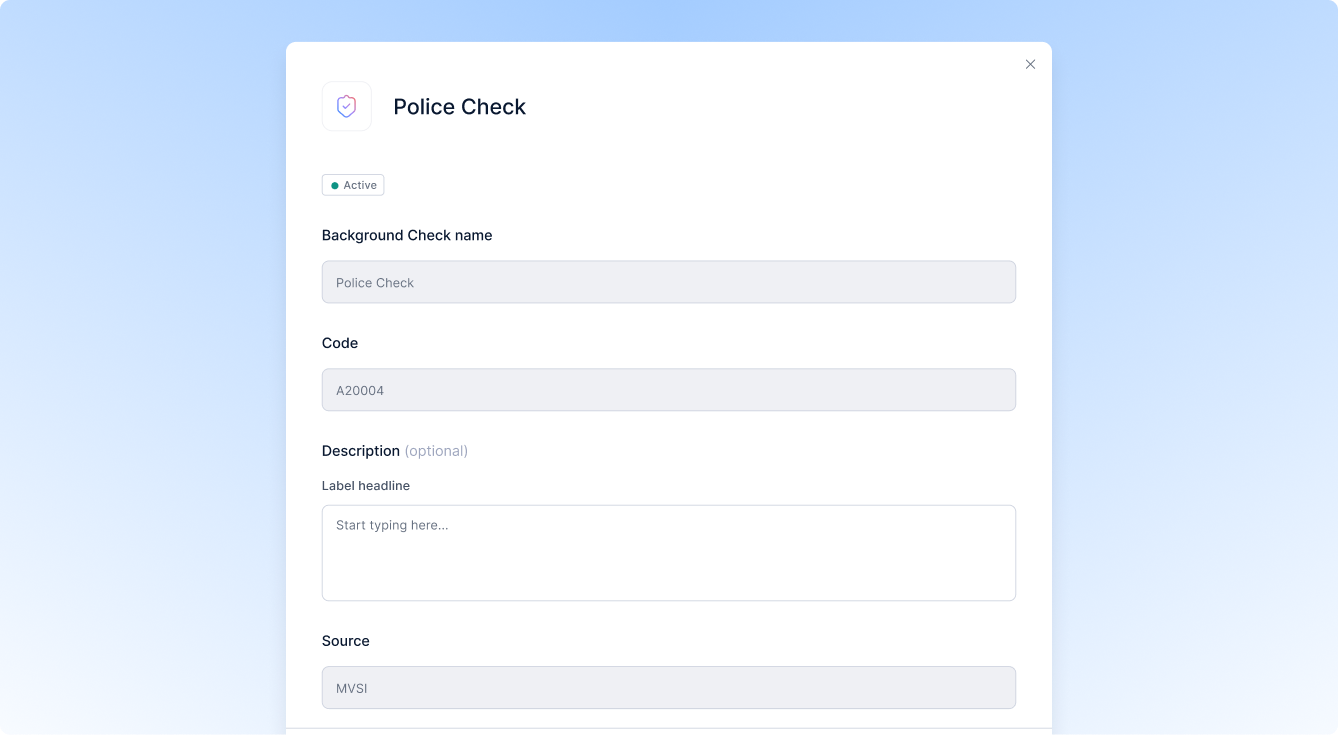
Connect your MVSI account to Xemplo and import the screening checks available to your business. From a worker’s profile, you can select the required check and send the request to MVSI without re-entering basic candidate details.
MVSI contacts the worker directly if further information is required. Progress updates and the completed report returns to Xemplo, keeping screening activity visible alongside the worker’s broader onboarding and compliance record.
Why connect MVSI to Xemplo?

Import the checks enabled in your MVSI account into Xemplo, then update descriptions or deactivate options your team doesn’t need.

Choose the required check from the worker’s Credentials tab and send the request to MVSI directly via Xemplo.
Choose the required check from the worker’s Credentials tab and send the request to MVSI directly via Xemplo.

Use the employment, criminal history, identity, qualification, licence, financial probity, and other checks available in your MVSI account.

Xemplo sends the worker’s name, email address, and selected check type to MVSI, which contacts the worker directly for any additional information required.

View and download the final report from the worker’s Xemplo profile so screening evidence remains with their record.
Xemplo sends MVSI the worker’s name, email address, and selected check type. MVSI returns the available check library, request status, and completed report.
| In Integration | Sync Direction | In Xemplo |
|---|---|---|
 Available checks
|

|
 Background check library
|
|
Check request
|

|
Background check request
|
|
Check status
|
|
Background check status
|
|
Completed report
|
|
Background check report
|
After the connection is established, selecting Sync imports the checks available through your MVSI account into Company Settings > HR > Background Checks. Admins can update the description displayed in Xemplo and deactivate any check that shouldn’t be available for requests.
From Worker > Credentials > Background Checks, select Request check and choose an active MVSI check. Xemplo sends the worker’s first name, last name, email address, and requested check type to MVSI. MVSI then contacts the worker directly to collect any additional information needed to complete the check.
As MVSI processes the request, status updates flow back into the worker’s Xemplo profile in real time. When MVSI finalises the check, Xemplo marks the request as Completed.
The completed result is sent to the contact listed on the MVSI account and is also available to view and download from the worker’s Credentials > Background Checks section in Xemplo.
An active MVSI account and API key or token are required to link the systems. The checks displayed in Xemplo depend on those available through your MVSI account, and completion times vary by check type.
Request, track, and review MVSI background checks from the same Xemplo workflow used to onboard and manage your workforce.
Request a Demo